Showing posts with label Apps. Show all posts
WhatsApp Added New Privacy Settings
When Facebook announced that they had bought mobile messaging app WhatsApp for $16 billion a common concern among users was that their personal data was about to be shared to advertisers.
Now, WhatsApp co-founder Jan Koum has published a blog post in order to “set the record straight” and address the “inaccurate and careless information circulating about what our future partnership would mean for WhatsApp users’ data and privacy”.
Koum stresses that the partnership with Facebook will allow WhatsApp to “continue operating independently and autonomously” and that the company would not have chosen to hitch its 465 million users to Facebook’s wagon if they had to change their principles.
- By default, WhatsApp will automatically set your Privacy Settings to allow any WhatsApp user to view your last seen, profile photo and status. Please note there is no way to hide youronline status.

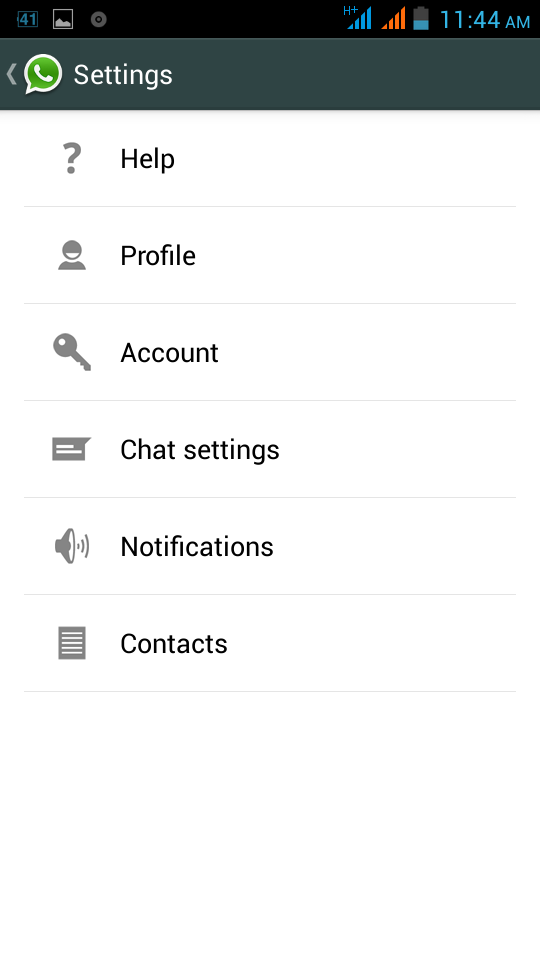


To change these settings, simply go to Menu Button > Settings > Account > Privacy.
You can set the following options separately for last seen, profile photo and/or status.
Everyone
Your last seen, profile photo and/or status will be available to all WhatsApp users.

My Contacts
Your last seen, profile photo and/or status will be available to your contacts from your address book only.

Nobody
Your last seen, profile photo and/or status will not be available to anyone.
Note: The Nobody setting is reciprocal. Setting last seen, profile photo and/or status to Nobody will also prevent you from seeing other users' information.

Information Source :- Whatsapp Official Site & Independent.co.uk.
How to Record High-Quality Audio of Phone Calls on Your Android Phone

While the legality of secretly recording phone calls varies in each country, sometimes it's useful to have audio documentation of conversations you have on your Smartphone.
There are plenty of reasons you'd want to be able to record phone calls, from important conversations, to threatening phone calls, or to just trying to capture a friend's embarrassing moment. It's even a good idea to record your calls to customer service representatives, especially if you know they're recording you.
This is an app you'll need to rule them all—no root required.
High-Quality Phone Call Recording
MP3 InCall Recorder & Voice, a free Android app from dev Grinzone, records your phone conversations and saves them in high-quality MP3 format.Using MP3 InCall Recorder & Voice
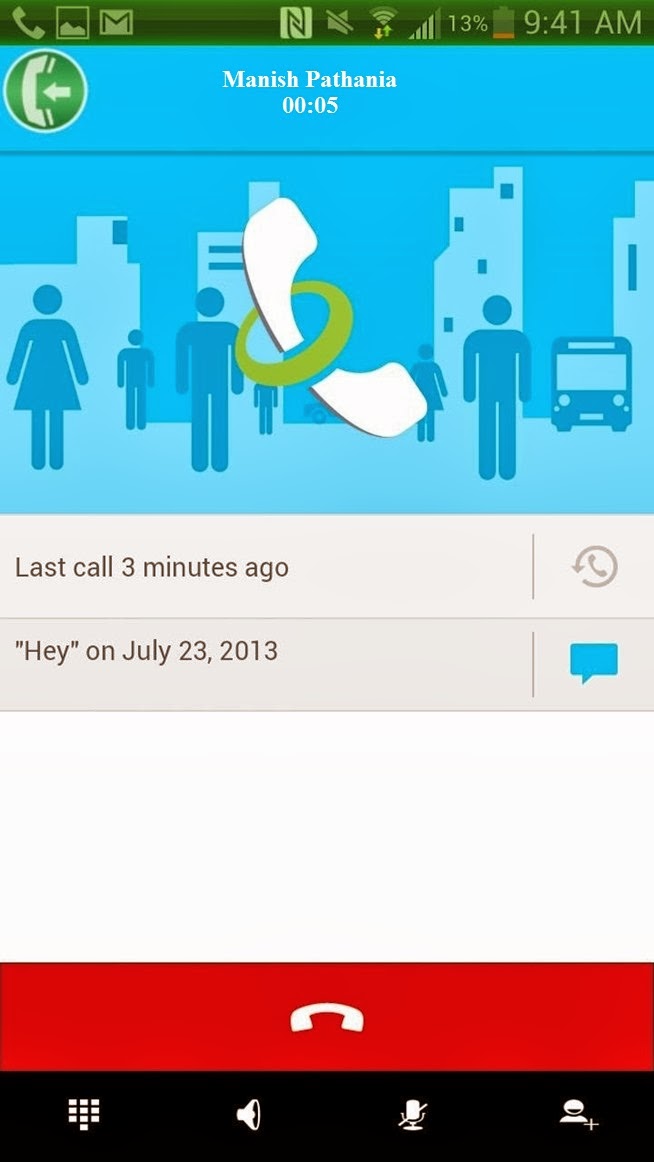
Once you download the app, you can make a phone call and start to record. The record button (which is the green circle located in the upper left hand corner) will now show up—which you can then tap to start the recording. If you go directly into the app, you can use it as a simple voice recorder as well.

Listening/Editing Your Recordings
From inside of MP3 InCall Recorder & Voice, you can view a list of all of your recordings, with the length and date recorded in the description. If you want to listen to it, tap on the recording and press the play button.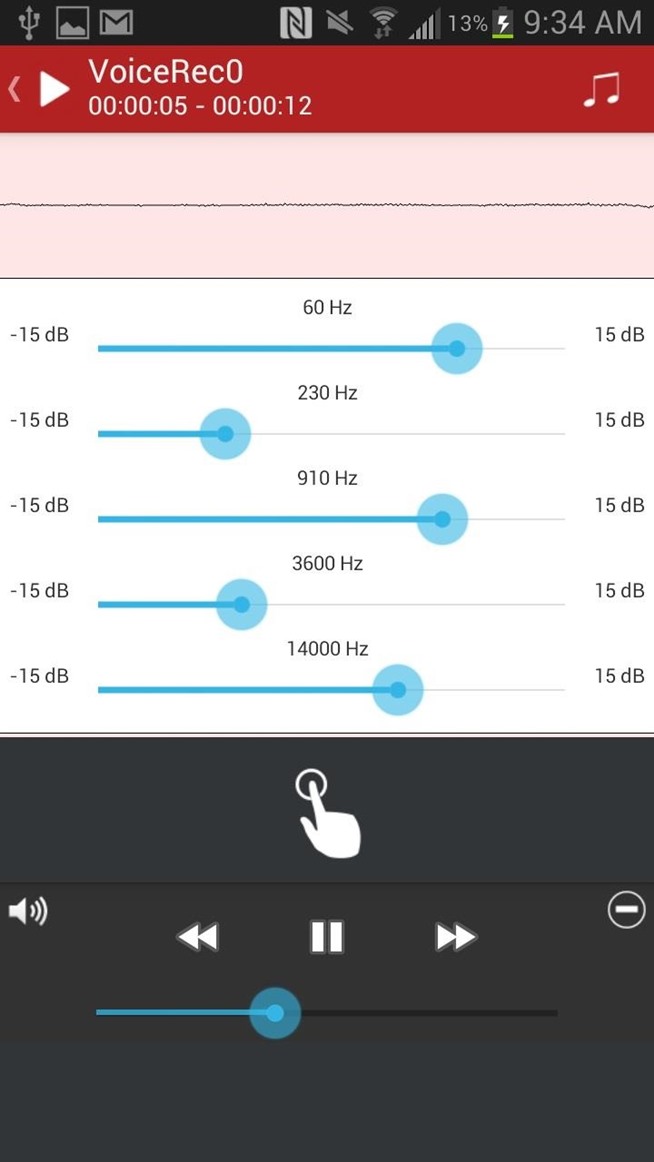
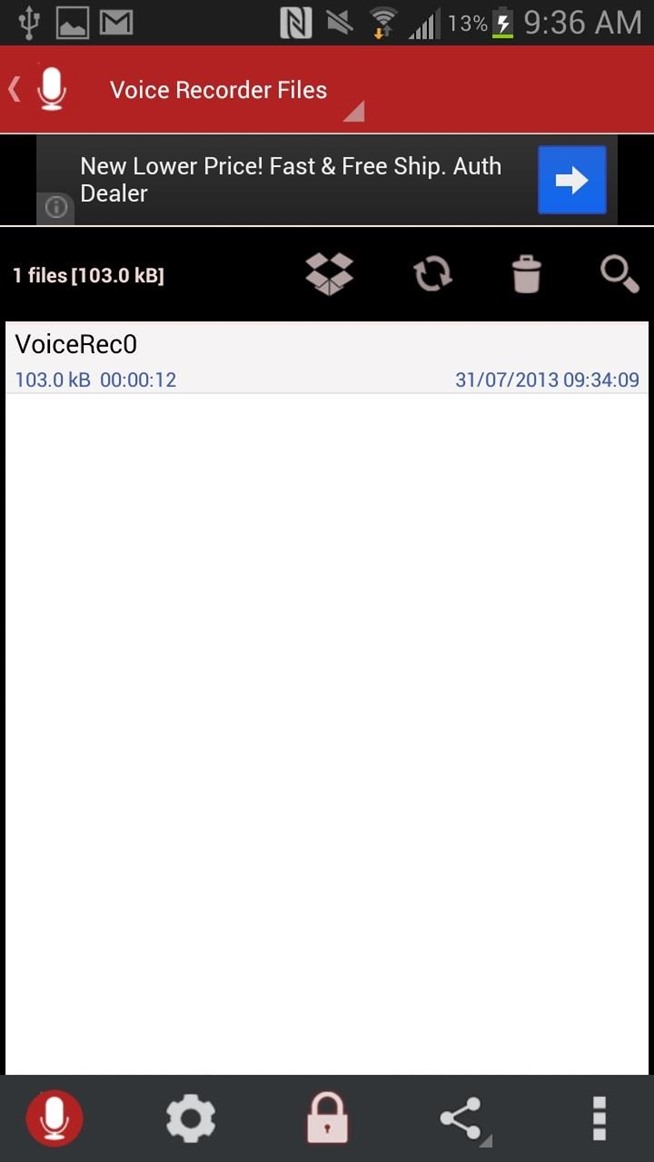
An equalizer is also available to tinker with in order to get the best sound for your recording. You can also check out the settings, share your recordings, upload them to Dropbox, and delete them—all from the icons scattered across the homepage.
Changing Your Settings
Tapping on the gear icon at the bottom of the homepage will take you to the settings, where you can mess with things such as recording mode (automatic or manual), set contacts to automatically record, delay recording time, record button placement, audio source, and more.
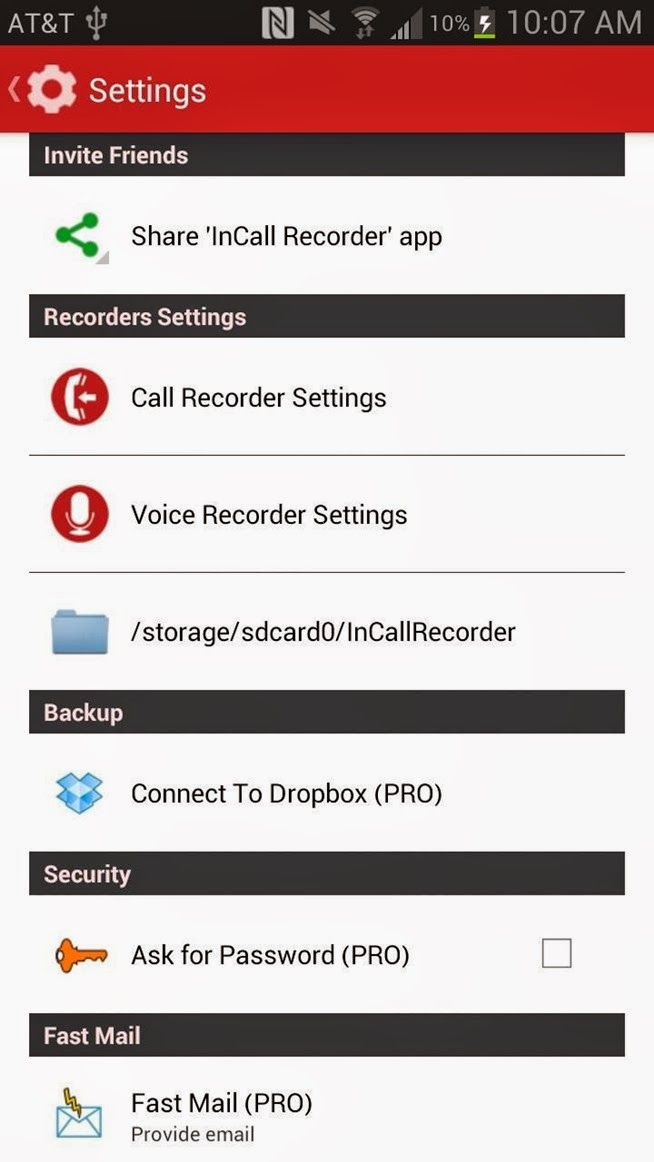.jpg)
For certain settings, you'll need to have the pro version. If you want to, just tap on the lock icon and purchase it for a dollar from inside the app. With pro, you'll be able to automatically record phone calls, add comments to a recording, set voice recording as ringtone, and more.
Now you can go ahead and record all of your conversations and keep them for future reference.....
20 apps to give your device a stock Android experience without root
As we all know, the Android OS is an open platform meaning just about anyone can take the software and do just about whatever they like with it. It’s this reason many handset manufacturers opt to forgo the standard Android design (sometimes referred to as “stock Android”), injecting their own flavor into the OS. I like to think of it like an ice cream shop. While every shop is selling ice cream, they all have their own unique flavors and mixins that go beyond just plain vanilla.
Yes, for the truly dedicated, there’s always the method of rooting and installing the stock Android OS by way of custom ROMs. Only problem is rooting often times comes at the cost of voiding one’s warranty, buggy software, and even possible harm to the device by way of the dreaded “brick.” If this
doesn’t sound like your cup of tea, you’re not alone. But is rooting really the only way to a stock Android experience on your device? Not entirely.
doesn’t sound like your cup of tea, you’re not alone. But is rooting really the only way to a stock Android experience on your device? Not entirely.
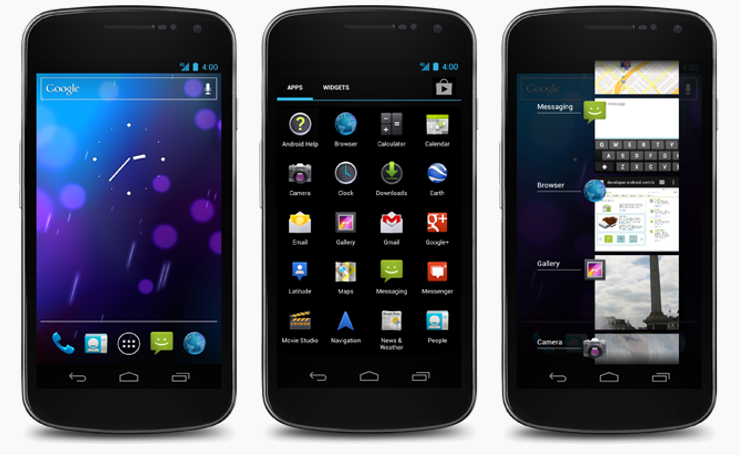
For our lovely Phandroid readers, I put together this handy guide showing you how, with apps downloaded from the Google Play Store, you can obtain a mostly stock Android experience out of your device — all without the worries that come with rooting, hacking, or voiding of warranties. Before we start, keep in mind that some of these applications will not run properly on anything but the firmware they were taken/designed from. For instance, an Ice Cream Sandwich browser will only work on your device if you’re running Android 4.0 Ice Cream Sandwich, not Gingerbread or Donut. Make sure you read the descriptions of the apps in the Play Store before you download. Now that we got that out of the way, let’s do this.
Launcher
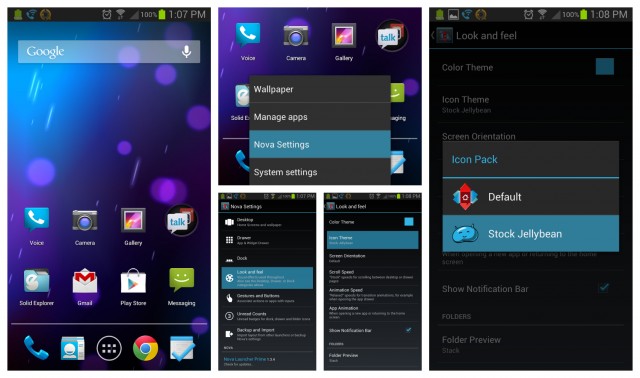
The most dramatic way to get your device looking like it’s running stock Android is by simply replacing its homescreen. In fact, most people will usually stop right there and that’s fine, but it’s only the tip of the Holo iceberg. With so many launcher replacements on the Google Play Store, there are numerous options to choose from. If you want something more closely resembling the stock Android experience (that is the point of this post, after all) you’ll want to stick with all-in-one solutions like Nova Launcher which offers a wide range of customizing options. Where you can find completely stock Jelly Bean launchers on the Play Store, they ain’t gonna help you when it comes to switching up those ugly icons your phone came with. Nova Launcher on the other hand, comes out of the box with Jelly Bean icons allowing for easy themeing of the remnants left behind from your unsavory manufacturer UI.
Lockscreen
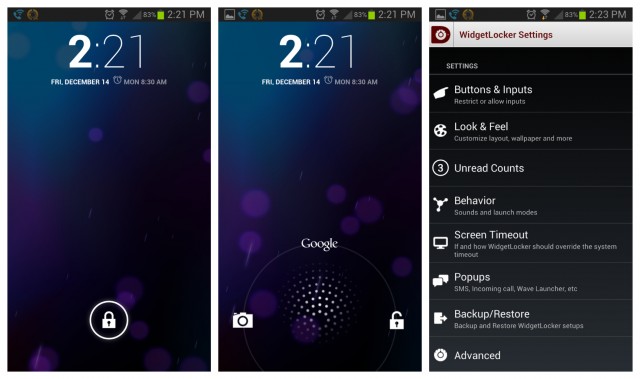
Another key ingredient to the stock Android experience is the first thing you look at upon waking your device — the lock screen. Once again, there are plenty of lockscreen options in the Play Store you can use to get your device looking like it’s running stock Android, the one with a heap of features being Widget Locker. I’ve been using Widget Locker for years now and while there are free lockscreen replacements (linked below), it’s WL’s feature set that keeps me coming back to it. The best part is you can use widgets from other apps, a key component if you want that stock Android 4.2 Jelly Bean clock displayed on your lockscreen.
Camera
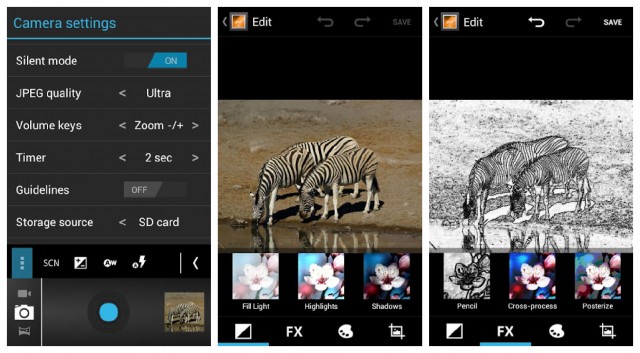
Ahhhh, yes. The camera. Chances are there is absolutely nothing wrong with the camera application that comes on your device. In fact, it probably runs perfectly well and comes with sh*t ton of features. There’s only one problem: it ain’t stock. This time around, we have a fewer options for stock Android camera applications from the Play Store, most of which are dependent on the version of Android your device is currently running. Got Ice Cream Sandwich? Well, then you’re going to have to stick to the ICS cameras (linked below). If you’re on Jelly Bean, you’re in luck. The Jelly Bean camera app in this case comes tied to the stock Gallery app. Not sure why it had to be that way, but consider it a 2-for-1 deal.
[Camera Jelly Bean+ (with Jelly Bean Gallery) | Camera Ice Cream Sandwich (Free) | Camera Ice Cream Sandwich+]
Gallery
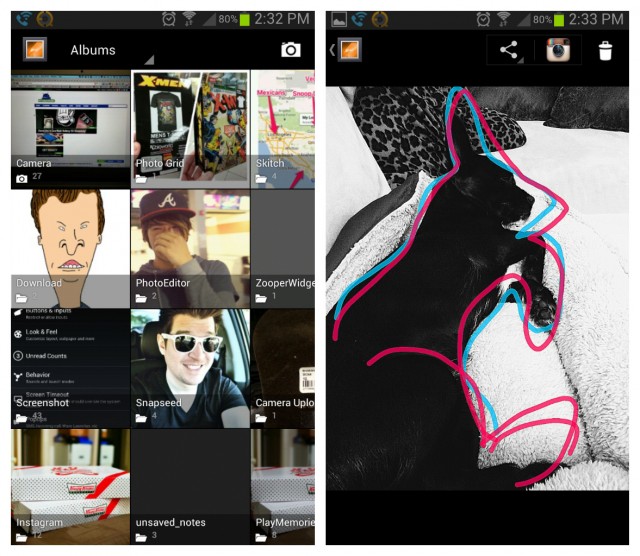
Probably my most frequently used app on my phone is the gallery app. I spend a lot of time in there sharing pics to my various social networks and it pains me when I see anything but minimal look of stock Android gallery app. If you purchased the Jelly Bean camera (linked above), you already got the Jelly Bean gallery app. Good for you. For those that didn’t, or simply didn’t want to bother with using the stock camera app, then you can download the free Ice Cream Sandwich gallery app. This is essentially the same as the Jelly Bean gallery, except you lose the notification bar. I’m sure this wont even bother most of you the way it did me (Jelly Bean FTW).
Messaging
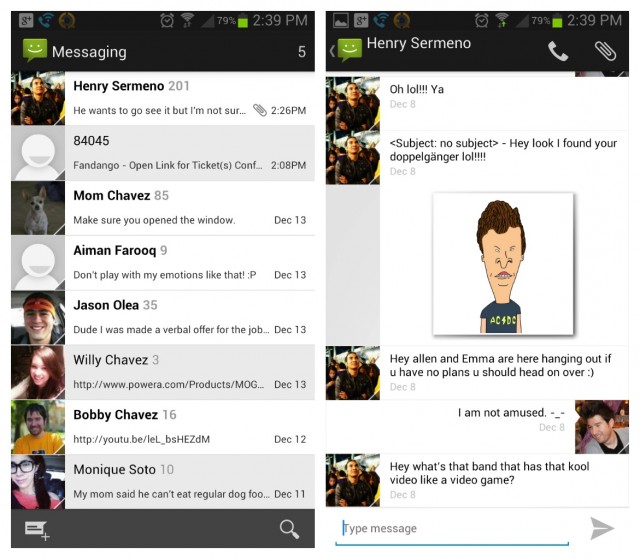
I went nuts when Google finally updated the messaging app in Ice Cream Sandwich. Once a hideously dark and empty experience, is now clean and minimal. It took me awhile, but I was able to find the stock Ice Cream Sandwich messaging app that can be installed on any device running Ice Cream Sandwich or Jelly Bean. There’s only one problem — this stock messaging app can’t (at the moment) send off MMS/picture messages, so heavy sexters may want to stick with whatever messaging app is already available on their device. Fooey.
Keyboard

When a manufacturer introduces their custom UI to a device, the first thing almost always kicked to the curb is the stock Android keyboard. This happens so often, you’d logically assume the stock keyboard is just that horrible, right? Couldn’t be further from the truth. In fact, Google has done some pretty awesome things with the Android keyboard starting in Android 4.0 Ice Cream Sandwich where text is more aggressively corrected, and in Jelly Bean, we even have next word predictions and Gesture Typing. So, there’s a couple of options here for heavy Android texters. You can download one of the modified stock Android keyboards below, or simply go with something like SwiftKey and use the built-in themeing options to make it appear more like stock Android. Either route would work.
Clock
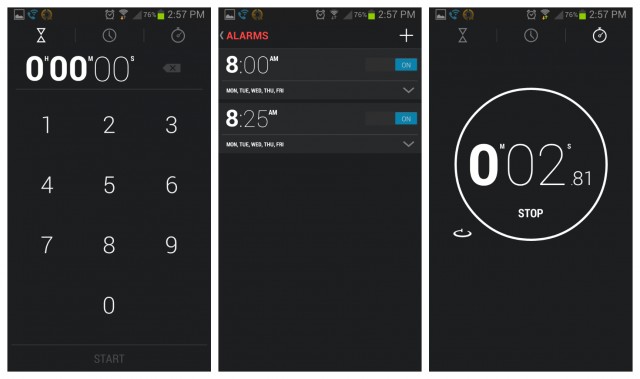
In Android 4.2 Jelly Bean — the absolute latest firmware Android has to offer — Google decided tofinally update the stock clock application. They did this by, not only giving the app a much needed visual overhaul, but making it more useful with the inclusion of timer and stop watch functions. One of the visual cues used to see which version of Android a device is running is almost always the stock clock widget, which was also updated in 4.2. Thankfully, a developer has uploaded both the stock clock app, with the included stock clock widget from 4.2 and it looks wonderful. Combine the Jelly Bean clock widget with the Widget Locker lockscreen replacement and you have yourself a faithful recreation of the lockscreen from Android 4.2 (for the most part).
Calculator
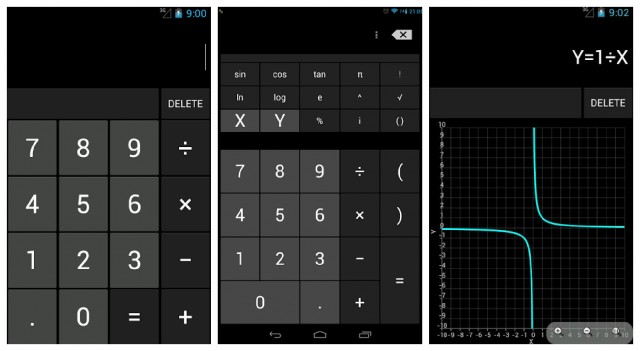
The calculator in Android has long needed an update and one crafty developer from the CyanogenMod team took matters into his own hands, introducing a revamped calculator into the Play Store complete with scientific and graphing functions. So, yes. This is in many ways better than the stock app, but still keeps the stock app look. The best part? It’s free to download so hop to it.
Calendar
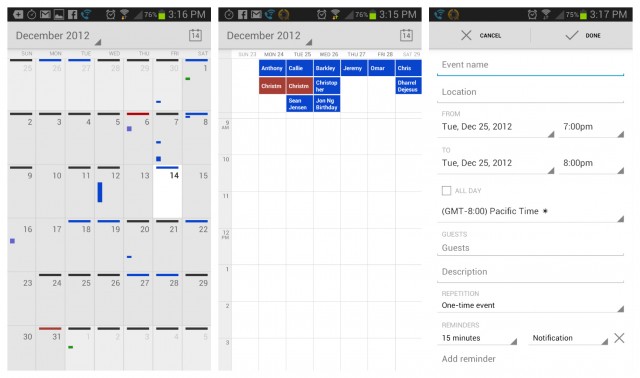
Another application that’s almost always removed from manufacturer devices is the stock Calendar app. This allows Android OEM’s to introduce their own calendar app, usually heavily skinned and chalk full of features. For those that find the stock Android calendar sufficient — in looks and features — Google has actually made available the stock Android calendar for download in the Play Store. As so often is the case with Google’s apps, it’s available free of charge.
Browser
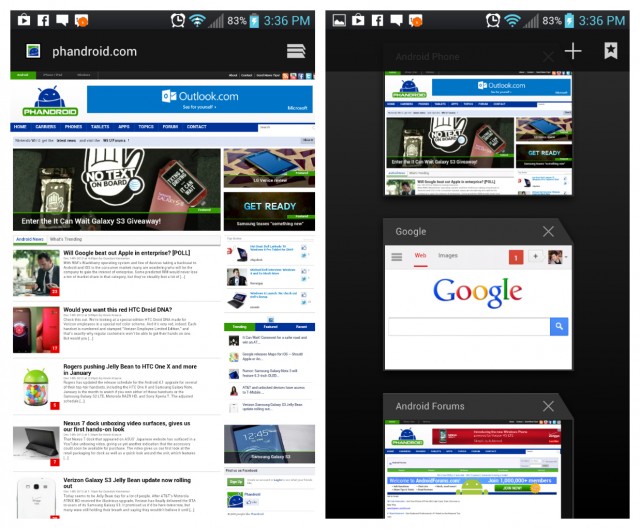 It was in Jelly Bean that Google made the controversial decision to remove their standard Android web browser (the one introduced all the way back in Honeycomb) from the OS entirely. Instead, they opted for their mobile Chrome browser, which offered better syncing across devices, but many found the browser slow in comparison to the previous version. While downloading Chrome from the Play Store would be the easy way at obtaining a “stock” Android look, the app doesn’t really feature Android’s Holo UI. For those wanting to take things back to the oldschool browser, there is one available from the Play Store, but you gotta be running Ice Cream Sandwich. Bummer. No Jelly Bean love here, folks.
[ICS Browser+ | Chrome]
Wallpapers

The icing on the cake for obtaining a stock Android look is, of course, using the stock Android wallpapers. While downloading the official wallpapers found in Jelly Bean are easy (zip file provided below), it’s some of the stock live wallpapers that are a little harder to come by. When it comes to the Phase Beam live wallpaper — introduced way back in Ice Cream Sandwich — one thoughtful developer has uploaded the moving wallpaper onto Google Play for everyone to download and enjoy. While it’s not the exact same wallpaper found on stock Android devices, it does a well enough job at recreating the Phase Beam wallpaper, while adding a few tricks as well.
Extras
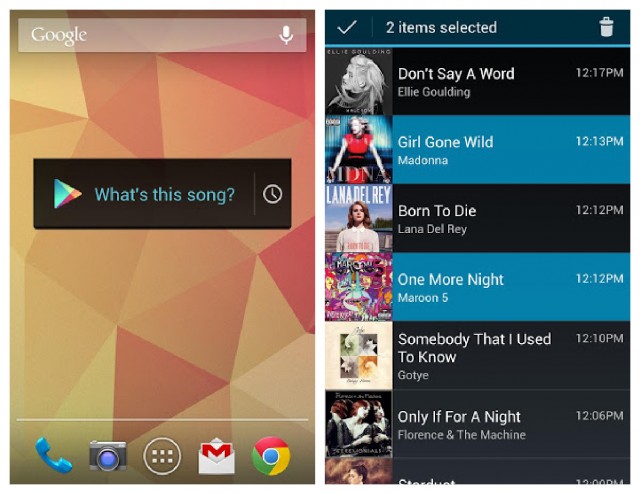
Google caused some buzz a few days ago when they introduced their music discovering app, Sound Search into the Google Play Store. Once reserved for Jelly Bean devices, Sound Search is now available to anyone with a device running Ice Cream Sandwich or above. It’s a great way to discover new music, download, and give your device yet another stock Android feature.
Stop Apps From Running In The Background To Save Battery, Data Usage & Memory

If so, the chances are you have a few apps that are causing problems by working in the background when they should really be resting. The resulting network connections can drain your battery in just a couple of hours, something that can prove both inconvenient and needlessly costly over time.
With Greenify, however, you can instruct Android to block apps from running in the background, not by closing them but instead hibernating them.
Greenify, the awesome auto-hibernating battery
saver, used to be a root-only app. But now, Greenify also works with non-rooted devices, with a few caveats.
The new version also improves auto-hibernate stability, especially on phones running Android 4.4 and above. Hit the link to try out the new version.
Greenify is one of the best app for Android. It prevents apps from running in the background and can prolong your battery life, stop apps using your data allowance and free up memory for other tasks. Here’s how to use it......

1. A Simple User Interface
The most effective apps are simple to use, and Greenify is no different. The first screen will list your Hibernated apps, but of course on first run this will be empty. To add an app to the list, tap the + button to display a list of all apps.
2. The App Analyzer
The screen listing your apps is the App Analyzer, where you will see your apps grouped into categories such as Running in background, Scheduled running and May slow down the device. If the app you wish to hibernate isn’t listed, tap More or use Search (top-right corner).
3. Browse the app list
The Search button returns you to the Home screen where you can find the app you wish to add to Greenify using the App Picker tool. You can also browse through the app list, tapping the App Picker button in the Notification Area when the app is running.
4.Select Multiple Apps to Hibernate
In the App Analyzer you can simultaneously hibernate multiple apps by selecting each in turn. Just as easily, you can select a single app. To apply Greenify’s hibernation magic, tap the tick button in the top-right corner. Greenify will inform you that the app is being hibernated.
5. Managing the Hibernated List
As you hibernate resource-hogging apps, they will be added to the Hibernated list, the first screen you encounter when running the app. This vital screen enables you to launch hibernated apps by tapping Play; similarly you can put them back to sleep using the Zzz button.
6. Which Apps Should You Hibernate?
The App Analyzer list can prove a little tricky to handle, especially if you don’t know which apps are draining your battery. Apps listed as Running in background should be your priority as these will be using up resources. You should only hibernate those you don’t need regularly, however.
7. Scheduled Running Apps Drain Battery
Apps listed under Scheduled running, meanwhile, can perhaps be the most dangerous. If there is no need that you can see for an app to run on a scheduled basis, then you should consider hibernating it so that it is only activated when you permit it.
8. Some Apps Slow Android
Any apps listed under the May slow down the device heading are those that rely on particular events causing them to launch. These are resource-heavy apps that should only be used in certain scenarios – again, this list should be short, focusing on regularly used apps such as backup tools.
9. Hibernate Apps, Save Your Battery
Battery performance can be improved using Greenify, and apps that you have hibernated are easily “woken up.” For added control, you can use the Disable auto-hibernation menu option to prevent hibernation of any apps.Once apps are Greenify-ed, you should notice an immediate improvement in battery life and network bandwidth!
Android Driving Assistant Robin
Android: When voice-activated driving assistant Robin launched , we had mixed feelings, but thought it could be useful. Now the app has updated with more useful features, including ETA warnings and real-time traffic data, alternative routes, and proactive traffic alerts so you know before you leave work if you're going to run into trouble on your usual route home.
Those travel features aren't the only updates in the app however: if you are stuck in traffic, Robin will read your Twitter stream to you, your Facebook feed, NPR news headlines, and even alternates voices when reading different headlines. You can also have Robin read incoming email and SMS messages so you don't take your hands off the wheel or eyes off the road.To boot, some of the quirks we noted in the previous version—like waving your hand over the screen to wake Robin up—have been fixed and work properly now. The updated Robin is still free, picked up a nice visual overhaul, and is available now at Google Play.

Market Helper Enables Incompatible Apps on Rooted Android Phones

Android (rooted): Every once in awhile, you hit up the Play Store only to find that the app you want "isn't compatible with your device." Want to try it anyway? Market Helper gives you the power to do so.
Sometimes, apps are incompatible just because they weren't made or tested on your device, or because they have a few bugs (but are otherwise usable). This isn't always the case, but it can happen. If you've got your mind set on trying that app, Market Helper will let you "spoof" your device so the Play Store sees it as another phone, tablet, carrier, or region. Just open it up, choose a device for which the app is compatible, and head back to the Play Store. You should find that app is available to download and install. Whether it works, of course, is another story.
When you're done, you can either reboot your phone or head back into Market Helper to restore your device to its original settings.
As always, be careful with apps like this. You may experience problems if you install something you aren't supposed to, so do so at your own risk. Be sure to check out the app's home page, too, for information on permissions and other technical stuff.
5 Best Android Apps For Photography

1. VSCO Cam

VSCO Cam is a popular photography app that was originally released for iOS, and after gaining a following, VSCO Cam is now available for Android. With VSCO Cam for Android, users can apply photo-editing basics like contrast, color temperature, and option to rotate photos. Users can import high resolution photos, browse stunning preset packs, and organize favorite photos with the quick filter navigation. When you're done editing your photos, share them with your friends on social networking sites. You can download VSCO Cam Android app from the Google Play Store here.

2. Flipagram

Flipagram is a photography app developed by Cheerful, Inc. Flipagram gives users the ability to create short video stories using images from Gallery photo and Instagram. The app even gives users the option to add their favorite soundtrack. short videos on YouTube, Instagram, Facebook, and more. You can download Flipagram Android app from the Google Play Store here.
3. A Beautiful Mess

A Beautiful Mess is a photo & video app created by Red Velvet Art LLC. Similar to AfterLight, users can take or upload photos, and add filters, borders, text, doodles and phrases like “adventure,” “enjoy,” “fancy,” and “happy day,” etc. Have fun getting creative and adding word bubbles to images of you and your friends. You can purchase A Beautiful Mess Android app from the Google Play Store here.
4. Moment.me

Moment.me is a photography app developed by Moment.me. Moment.me allows users to combine photos, video, and updates from social networking sites like Facebook, Twitter, Instagram and Google +, all into one album. Moment.me lets users take control over their albums. Users can edit their albums, invite friends to contribute, upload photos, and apply photo filters. Moment.me is the best way to capture your favorite moments. You can download Momement.me Android app from the Google Play Store here.
5. Camera Awesome

Camera Awesome is a photography app developed by SmugMug Inc. Camera Awesome packs in tons of features including HDR mode, Panorma modes, and anti-shake video image stabilization. Users can ake advantage of all the editing tools like filters, textures and frames. Share your favorite photos on Facebook, Twitter, Google+, Instagram, Photobucket, Tumblr, and more. You can download Camera Awesome Android app from the Google Play Store here.


