Showing posts with label What is ?. Show all posts
What is Torrent Leeching & Seeding ?
This is a brief description of SEEDING to help explain how important it is in the bit-torrent world.
I will base this example on a newly uploaded 1.5MB file with one original seed.
SEEDING:
YOU download the file to your bit-torrent client at a speed of 20kbs. While it is downloading you are 'Leeching.' It takes only a minute or two and once it has downloaded you have the whole file. What do you do now?
Nothing, not if you haven't blocked/limited uploads within your client properties.
The file will stay where where it is and simply be 'available' for others to connect to, it is therefore a 'SEED.' In the most serious sense of the word, it is only actually a seed once you've uploaded the full file at least once. But we'll ignore that for now.
Your upload speed on this file is 20kbs, that means a third person who downloads the file can obtain, in theory, 40kbs download speed. So with your seed added the download speed available on the torrent file has doubled! As more and more people download and seed the file, the speeds can reach extremely fast pace.
Of course, speeds will vary, depending on how many seeds available, how many leechers, how many peers are connected and a bunch of other variables, but that is the condensed theory.
LEECHING:
Leeching is, as mentioned above, the process of connecting to the download and obtaining the file. It is called leeching because you have not as yet created a seed. You may read various posts relating to the word' leechers' as some form of demonic presence, but in truth we are all leechers at some stage in torrent share. What gives Leeching a bad name is the fact that many people do not return the favor once they download. In short they 'leech' the file from others and fail to upload the whole file in return. Some people even restrict their bandwidth to minimal or even NO upload speed, and of course this affects speeds and availability of the file.
However, you need to understand, especially when using our example, that leeching is as important in the initial stages of sharing a file as Seeding will later become. Without leechers there can be no seeds. So on a newly added torrent, you may often see many leechers compared to the number of SEEDS.
For your own guidance, you should check the properties and options of your particular bit-torrent client. If you want to help the torrent world by seeding more advantageously, do not restrict your upload speeds and/or bandwidth. However, you may need to manipulate these properties on a individual file bases if you have limited bandwidth.
Everything You Need to Know About Rooting Your Android Phone

We love Android, but rooting your phone can give you the opportunity to do so much more than your phone can do out of the box—whether it's wireless tethering, speeding it up with overclocking, or customizing the look of your phone with themes. Here's what you need to know about the rooting process, and where to find a guide for your phone.
Update: This used to be our always up-to-date rooting guide, which proved to be too large an undertaking for us to keep up. It was a nice try, but seeing as we only have a few Android phones to test, we couldn't reliably keep it up to date. So, we've changed this guide into more of a general resource for those of you that want to get into rooting (though many of the old comments still remain).
Check out the glossary below to get acquainted with important rooting terms, then check out the FAQ for more info on your burning questions. When you're ready, check out the last section for resources on your specific device. We can't give you the instructions ourselves, but hopefully we can give you a push in the right direction and make the process easier for you.
What Is Rooting, Exactly?
Rooting, for those of you that don't know, means giving yourself root permissions on your phone. It's similar running programs as administrators in Windows, or running a command with
sudo in Linux. With a rooted phone, you can run apps that require access to certain system settings, as well as flash custom ROMs to your phone, which add all sorts of extra features. If you're on the fence about rooting, check out our top 10 reasons to root your Android phone for some motivation.There are a ton of different Android phones out there, and while some rooting methods might work for multiple phones, there is no one-size-fits-all guide for rooting every phone out there. But, there are a lot of things you should know about rooting before you start, and this guide should help you out.
Glossary of Rooting Terms

As you learn more about the rooting process, you'll probably run into a bunch of terms that can be confusing. Here are some of the most important ones and what they mean.
If there are any other terms you think we should add, let me know and we'll put them in!
- Root: Rooting means you have root access to your device—that is, it can run the
sudocommand, and has enhanced privileges allowing it to run apps like Wireless Tether orSetCPU. You can root either by installing the Superuser application or by flashing a custom ROM that includes root access. - ROM: A ROM is a modified version of Android. It may contain extra features, a different look, speed enhancements, or even a version of Android that hasn't been released for your phone yet. We won't discuss ROMs in depth here, but if you want to use one once you're rooted, you can read more about doing that here.
- Kernel: A kernel is the component of your operating system that manages communications between your software and hardware. There are a lot of custom kernels out there for most phones, many of which can speed up your phone and increase your battery life, among other things. Be careful with kernels, though, as a bad one can cause serious problems with your phone and possibly even brick it.
- Radio: Radios are part of your phone's firmware. Your radio controls your cellular data, GPS, Wi-Fi, and other things like that. You can sometimes find custom radios for your phone that you can flash yourself, but beware as sometimes these can cause problems.
- Flash: Flashing essentially means installing something on your device, whether it be a ROM, a kernel, or a recovery (see below) that comes in the form of a ZIP file. Sometimes the rooting process requires flashing a ZIP file, sometimes it doesn't.
- Brick: To brick your phone is to break it during flashing or other acts. There is always a small risk with flashing, and if your phone becomes unable to function—that is, it basically becomes a brick—you've bricked your phone. The risk is very small, however, and more often than not people say "brick" when they really mean "it turns on but doesn't boot properly," which is a very fixable problem. See the FAQ below for more information.
- Bootloader: Your bootloader is the lowest level of software on your phone, running all the code that's necessary to start your operating system. Most bootloaders come locked, meaning you can't flash custom recoveries or ROMs. Unlocking your bootloader doesn't root your phone directly, but it does allow you to root and/or flash custom ROMs if you so desire.
- Recovery: Your recovery is the software on your phone that lets you make backups, flash ROMs, and perform other system-level tasks. The default recovery on your phone can't do much, but you can flash a custom recovery—like ClockworkMod or TWRP—after you've unlocked your bootloader that will give you much more control over your device. This is often an integral part of the rooting process.
- Nandroid: From most third-party recovery modules, you can make backups of your phone called nandroid backups. It's essentially a system image of your phone: Everythingexactly how it is right now. That way, if you flash something that breaks your phone, you can just flash back to your most recent nandroid backup to return everything to normal. This is different from using an app like Titanium Backup that just backs up apps and/or settings—nandroid backups backup the entire system as one image. Titanium backups are best when switching between ROMs or phones.
- ADB: ADB stands for Android Debug Bridge, and it's a command line tool for your computer that can communicate with an Android device you've connected to it. It's part of the Android Software Developers Kit (SDK). Many of the root tools you'll find use ADB, whether you're typing the commands yourself or not. Unless the instructions call for installing the SDK and running ADB commands, you won't need to mess with it—you'll just need to know that it's what most of the tools use to root your phone.
- S-OFF: HTC phones use a feature called Signature Verification in HBOOT, their bootloader. By default, your phone has S-ON, which means it blocks you from flashing radio images—the code that manages your data, Wi-Fi, and GPS connections. Switching your phone to S-OFF lets you flash new radios. Rooting doesn't require S-OFF, but many rooting tools will give you S-OFF in addition to root access, which is nice.
- RUU, SBF, and OPS: ROM Upgrade Utilities (for HTC phones), System Boot Files (for Motorola phones), and OPS and PIT files (for Samsung phones) are files direct from the manufacturer that change the software on your phone. RUU and SBF files are how the manufacturers deliver your over-the-air upgrades, and modders often post leaked RUU and SBF files for flashing when the updates haven't been released yet. They're also handy when downgrading your phone, if a rooting method isn't available for the newest software version yet. You can flash RUUs right from your HTC phone, but Motorola users will need a Windows program called RSD Lite to flash SBF files, and Samsung users will need a tool called Odin to flash OPS and PIT files (note there is a specific version of Odin for each device).
10 years of Facebook in one graphic.....
If you're on Facebook, a new video about your life went live online Tuesday (04 Feb 2014).
Yes, you. And you, and you and you.
With the help of an automated tool, Facebook has created short, personalized video highlights for "hundreds of millions" of its users. The 62-second clip notes the year you joined Facebook, then shows a handful of your most-liked posts and a seemingly random selection of your photos -- all set to instrumental music.
To see yours, go to Facebook/lookback and admire, or cringe.
Facebook celebrates 10 years
Facebook posted the clips, titled "A Look Back," without fanfare Tuesday to commemorate the 10th anniversary of the social network, which was founded by Mark Zuckerberg and four classmates at Harvard University on February 4, 2004.
"People often ask if I always knew that Facebook would become what it is today. No way," wrote Zuckerberg, the company's CEO, in a Facebook post Tuesday.
"I remember getting pizza with my friends one night in college shortly after opening Facebook. I told them I was excited to help connect our school community, but one day someone needed to connect the whole world."
You may also like this : How To Download Facebook Videos To Your Computer Step By Step

What Files Are..?
Files are the collection of data onto a permanent storage structure. They are stored on a permanent storage media such as a computer hard drive, CD ROM drive, floppy disk drive or sometimes even a tape drive. Files take a certain amount of room to store. For example if you have two text files and one file has one sentence in it while the other file has 200 sentences in it, the file with 200 sentences will use more room on the storage media.
Provide machine executable code which is used to run application programs and the operating system.
Store application program or operating system configuration information.
Store data used by the user such as Microsoft Word document files.
Therefore there are three types of information that files contain:

The main items to remember include the facts that all files take a certain amount of room on their storage media and all files have a type which indicates whether they can be run by your computer. The file extension is one indication of the file type but not the only way to determine type.
If you are browsing your files using "My Computer" and click on "View" and "Details" you will see a window showing the file characteristics like the one below. Folders only take a little room on the hard drive and do not normally take as much room as files.
File Functions
Different files have different purposes. Files are used to do one or more of the following functions:Provide machine executable code which is used to run application programs and the operating system.
Store application program or operating system configuration information.
Store data used by the user such as Microsoft Word document files.
Therefore there are three types of information that files contain:
- Executable code.
- System or program configuration information.
- User data.
File Characteristics
Files have the below characteristics:- Name
- Optional extension name - Part of the name, it is used by Windows operating systems to identify an associated program that can be used to read it
- Size - Shows the space the file requires for storage normally showed in kilobytes (Kb) which is 1000 bytes
- Type - Indicates the program used to access the file. The next section will talk more about file types.
- Date Modified - Shows the last date the file was created or changed.
- File structure - This characteristic is not view-able by the computer user but some programs can examine file structure to determine the type of file it is even when the file extension is changed.
The main items to remember include the facts that all files take a certain amount of room on their storage media and all files have a type which indicates whether they can be run by your computer. The file extension is one indication of the file type but not the only way to determine type.
If you are browsing your files using "My Computer" and click on "View" and "Details" you will see a window showing the file characteristics like the one below. Folders only take a little room on the hard drive and do not normally take as much room as files.
What is Cloud Computing & How it works ?
Cloud computing is the delivery of computing as a service rather than a product, whereby shared resources, software, and information are provided to computers and other devices as a utility over a network (typically the Internet).

Layers
Once an internet protocol connection is established among several computers, it is possible to share services within any one of the following layers.
Client
A cloud client consists of computer hardware and/or computer software that relies on cloud computing for application delivery and that is in essence useless without it. Examples include some computers, phones and other devices, operating systems, and browsers.
Application
Cloud application services or "Software as a Service (SaaS)" deliver software as a service over the Internet, eliminating the need to install and run the application on the customer's own computers and simplifying maintenance and support.
Platform
Cloud platform services, also known as platform as a service (PaaS), deliver a computing platform and/or solution stack as a service, often consuming cloud infrastructure and sustaining cloud applications. It facilitates deployment of applications without the cost and complexity of buying and managing the underlying hardware and software layers. Cloud computing is becoming a major change in our industry, and one of the most important parts of this change is the shift of cloud platforms. Platforms let developers write certain applications that can run in the cloud, or even use services provided by the cloud. There are different names being used for platforms which can include the on-demand platform, or Cloud 9. It's your choice on what you would like to call the platform, but they all have great potential in developing. When development teams create applications for the cloud, they must build its own cloud platform.
Infrastructure
Cloud infrastructure services, also known as "infrastructure as a service" (IaaS), deliver computer infrastructure – typically a platform virtualization environment – as a service, along with raw (block) storage and networking. Rather than purchasing servers, software, data-center space or network equipment, clients instead buy those resources as a fully outsourced service. Suppliers typically bill such services on a utility computing basis; the amount of resources consumed (and therefore the cost) will typically reflect the level of activity.
Server
The servers layer consists of computer hardware and/or computer software products that are specifically designed for the delivery of cloud services, including multi-core processors, cloud-specific operating systems and combined offerings.
Deployment modelsCloud computing types
Public cloud
Public cloud describes cloud computing in the traditional mainstream sense, whereby resources are dynamically provisioned to the general public on a fine-grained, self-service basis over the Internet, via web applications/web services, from an off-site third-party provider who bills on a fine-grained utility computing basis.
Community cloud
Community cloud shares infrastructure between several organizations from a specific community with common concerns (security, compliance, jurisdiction, etc.), whether managed internally or by a third-party and hosted internally or externally. The costs are spread over fewer users than a public cloud (but more than a private cloud), so only some of the benefits of cloud computing are realized.
Hybrid cloud
Hybrid cloud is a composition of two or more clouds (private, community, or public) that remain unique entities but are bound together, offering the benefits of multiple deployment models. It can also be defined as multiple cloud systems that are connected in a way that allows programs and data to be moved easily from one deployment system to another.
Private cloud
Private cloud is infrastructure operated solely for a single organization, whether managed internally or by a third-party and hosted internally or externally.
They have attracted criticism because users "still have to buy, build, and manage them" and thus do not benefit from lower up-front capital costs and less hands-on management, essentially "[lacking] the economic model that makes cloud computing such an intriguing concept".
Architecture
Cloud architecture, the systems architecture of the software systems involved in the delivery of cloud computing, typically involves multiple cloud components communicating with each other over a loose coupling mechanism such as a messaging queue.
The Intercloud
The Intercloud is an interconnected global "cloud of clouds" and an extension of the Internet "network of networks" on which it is based.
Cloud engineering
Cloud engineering is the application of engineering disciplines to cloud computing. It brings a systematic approach to the high level concerns of commercialization, standardization, and governance in conceiving, developing, operating and maintaining cloud computing systems. It is a multidisciplinary method encompassing contributions from diverse areas such as systems, software, web, performance, information, security, platform, risk, and quality engineering.
What is a Computer Virus & How it works ?


Understanding exactly how a computer virus works is not a simple task. Here's a generic explanation:
Let's imagine a desk clerk coming to work every day to his office. Everyday he finds a stack of papers with a list of tasks that he must fulfill during his work day. He takes the top paper from the stack, reads the instructions, follows them carefully, then throws the "used" paper into the wastebasket and continues to the next task. Now, suppose a bad guy sneaks into the office and inserts a paper into the stack with his own task which goes like this: "Copy this paper two times and put the copies into your neighbors' stacks". This is approximately the scenario according to which the computer virus works.
A computer, like a desk clerk, carefully fulfills all the commands contained in the program (task lists), starting with the first one. If the first instruction is "copy my body into two other programs", the computer will do so, and the virus command will now be in two other programs. When the computer starts running other "infected" programs, the virus will continue to spread to all over the computers in a similar manner. In the above scenario, about a desk clerk and his office, our paper virus does not check whether another stack of papers is infected or not. Therefore, by the end of the working day, all the office will be overrun by piles of such copies and the clerks will have nothing else to do but copy the same text and give it to their neighbors. The result of all this...the first clerk makes two copies of the paper, the next victims of the virus makes four copies, then 8, 16, 32, 64 and so on.
Types of Computer Viruses
Resident Viruses
This type of virus is a permanent which dwells in the RAM. From there it can overcome and interrupt all the operations executed by the system: corrupting files and programs that are opened, closed, copied, renamed etc.
Examples include: Randex, CMJ, Meve, and MrKlunky.
Direct Action Viruses
The main purpose of this virus is to replicate and take action when it is executed. When a specific condition is met, the virus will go into action and infect files in the directory or folder that it is in and in directories that are specified in the AUTOEXEC.BAT file PATH. This batch file is always located in the root directory of the hard disk and carries out certain operations when the computer is booted.
Overwrite Viruses
Virus of this kind is characterized by the fact that it deletes the information contained in the files that it infects, rendering them partially or totally useless once they have been infected.
The only way to clean a file infected by an overwrite virus is to delete the file completely, thus losing the original content.
Examples of this virus include: Way, Trj.Reboot, Trivial.88.D.
Boot Virus
This type of virus affects the boot sector of a floppy or hard disk. This is a crucial part of a disk, in which information on the disk itself is stored together with a program that makes it possible to boot (start) the computer from the disk.
The best way of avoiding boot viruses is to ensure that floppy disks are write-protected and never start your computer with an unknown floppy disk in the disk drive.
Examples of boot viruses include: Polyboot.B, AntiEXE.
Macro Virus
Macro viruses infect files that are created using certain applications or programs that contain macros. These mini-programs make it possible to automate series of operations so that they are performed as a single action, thereby saving the user from having to carry them out one by one.
Examples of macro viruses: Relax, Melissa.A, Bablas, O97M/Y2K.
Directory Virus
Directory viruses change the paths that indicate the location of a file. By executing a program (file with the extension .EXE or .COM) which has been infected by a virus, you are unknowingly running the virus program, while the original file and program have been previously moved by the virus.
Once infected it becomes impossible to locate the original files.
Polymorphic Virus
Polymorphic viruses encrypt or encode themselves in a different way (using different algorithms and encryption keys) every time they infect a system.
This makes it impossible for anti-viruses to find them using string or signature searches (because they are different in each encryption) and also enables them to create a large number of copies of themselves.
Examples include: Elkern, Marburg, Satan Bug, and Tuareg.
File Infectors
This type of virus infects programs or executable files (files with an .EXE or .COM extension). When one of these programs is run, directly or indirectly, the virus is activated, producing the damaging effects it is programmed to carry out. The majority of existing viruses belong to this category, and can be classified depending on the actions that they carry out.
Companion Viruses
Companion viruses can be considered file infector viruses like resident or direct action types. They are known as companion viruses because once they get into the system they "accompany" the other files that already exist. In other words, in order to carry out their infection routines, companion viruses can wait in memory until a program is run (resident viruses) or act immediately by making copies of themselves (direct action viruses).
Some examples include: Stator, Asimov.1539, and Terrax.1069
FAT Virus
The file allocation table or FAT is the part of a disk used to connect information and is a vital part of the normal functioning of the computer.
This type of virus attack can be especially dangerous, by preventing access to certain sections of the disk where important files are stored. Damage caused can result in information losses from individual files or even entire directories.
Worms
A worm is a program very similar to a virus; it has the ability to self-replicate, and can lead to negative effects on your system and most importantly they are detected and eliminated by antiviruses.
Examples of worms include: PSWBugbear.B, Lovgate.F, Trile.C, Sobig.D, Mapson.
Trojans or Trojan Horses
Another unsavory breed of malicious code are Trojans or Trojan horses, which unlike viruses do not reproduce by infecting other files, nor do they self-replicate like worms.
Logic Bombs
They are not considered viruses because they do not replicate. They are not even programs in their own right but rather camouflaged segments of other programs.
Their objective is to destroy data on the computer once certain conditions have been met. Logic bombs go undetected until launched, and the results can be destructive.
What is a Computer Firewall ?
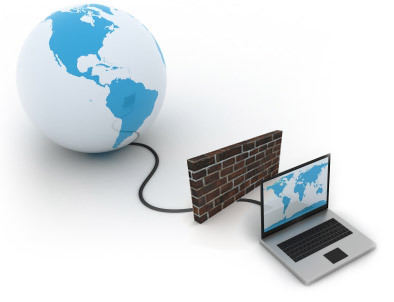
Hardware Firewall: A Hardware Firewall is a physical piece of equipment that sits between the Internet and your computer. An example of a hardware firewall is a broadband router, a common form of Internet connection. The benefit of using a hardware firewall, is that it has the ability to protect multiple computer systems that are connected to it at the same time. This makes it an effective firewall for use in businesses that have multiple computers connected to the Internet, as well as in homes that have more than one computer system.
Software Firewall: Software Firewalls work in the same way as a hardware firewall, by monitoring and blocking information that comes to your computer via the Internet, however software firewalls must be installed as a program on your computer. These software firewalls can either be installed from a computer disk that you have purchased, or downloaded over the Internet. Software firewalls are the most common type of firewall. Programs such as Norton 360, Norton Internet Security, ESET Smart Security, and Kaspersky Internet Security all have a firewall bundled within them.
What a Firewall does: Regardless of what type of firewall you choose to use, having one on your computer is a really good idea. A firewall helps to prevent computer hackers from accessing your computer through the Internet, and stealing sensitive information or infecting your computer system with some form of computer virus. A hacker can gain access to your system by "back doors" or open ports that connect your computer to the Internet. With a firewall in place these ports are blocked from inbound traffic, effectively closing the door in the hackers face.
Of course, damage can also be done to your computer from outbound traffic as well. Say for instance a hacker was able to slip by you with a Trojan, virus, spyware or phishing scheme that went undetected. The next time you booted up your computer and connected to the Internet, information on your computer could be sent out to the hacker. Many firewalls also block outbound traffic that will help prevent this from happening.
There are basically two ways that Firewalls work. Generally, data that comes in is analyzed by the firewall to determine the IP address it is coming from and the content that it contains. The firewall system then checks to see if this information is compliant with rules that you are able to configure. It can also analyze information at the application level. The firewall program will determine whether or not the application should be able to send or receive data through the port you are connected by. Firewall programs are extremely important to the protection of not only your computer system, but you personal information as well. Many anti-virus programs come with firewall protection. Firewall protection should be considered an essential part of any computer's security strategy.


